
Help
PlaylistMaker helps you find videos on YouTube, gather them from different places, build playlists, and publish them to your own YouTube account. Everything below is on the screens you already see; the pictures use made-up playlists.
- The menu
- Workbench
- PlaylistMaker lists
- Playlists on YouTube
- Publish and update
- TV station
- Phones and tablets
- Send feedback
The menu
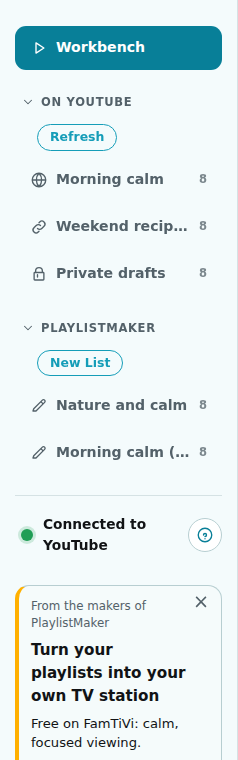
The menu on the left lists your playlists. Workbench is where you search for videos. On YouTube shows the playlists in your own YouTube account (you need to sign in with Google for that). PlaylistMaker shows the playlists you built here; press New List to start one. Click the small arrow beside a heading to open or close its list.
Under the lists, the green dot means you are connected to YouTube; click it to see what that allows. The ? next to it brings you to this page.
Workbench: find and choose videos
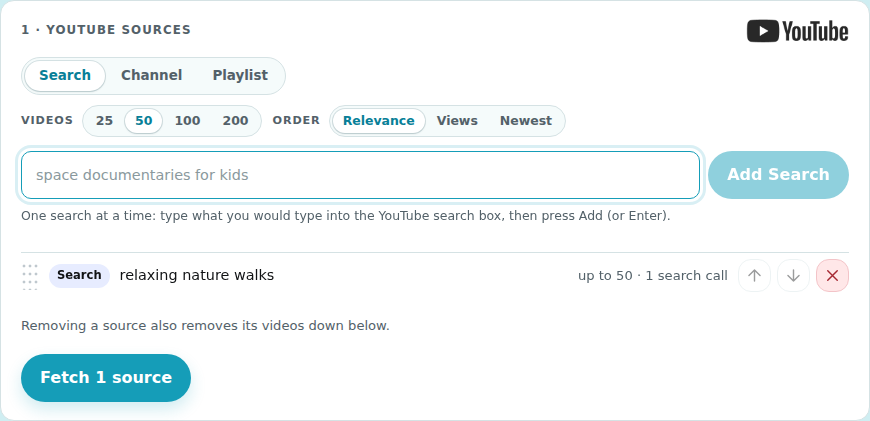
1 · YouTube sources. Choose Search, Channel or Playlist, type what you want (a search, a channel name or address, or a playlist address) and press Add. You can add as many sources as you like, in the order you want them, then press Fetch to load their videos. Use Find if you do not know the exact channel or playlist.
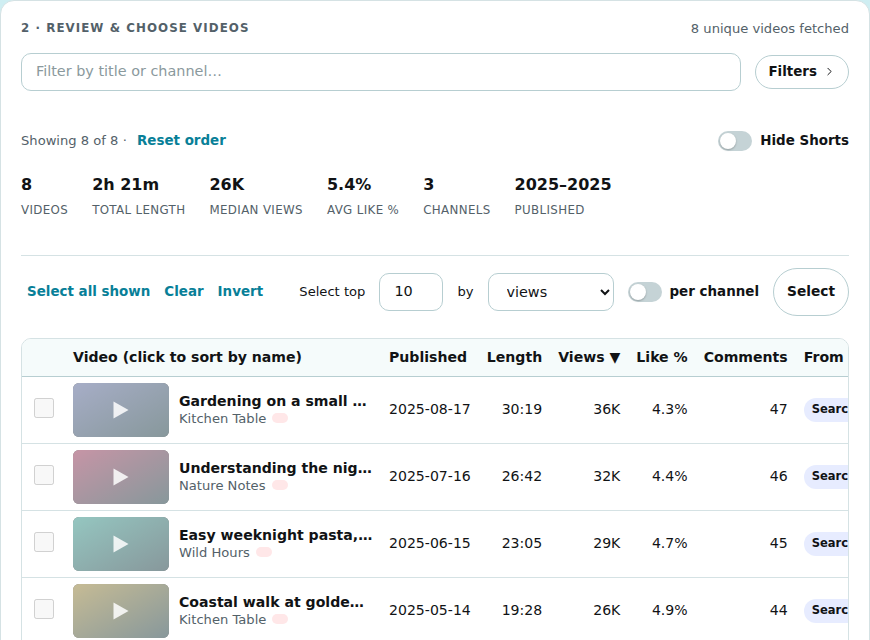
2 · Review and choose videos. Everything fetched appears in one table. Type in the filter box to narrow it down, open Filters for views, like percentage, length, date and channel, and switch on Hide Shorts to leave out videos of a minute or less. Click a column heading to sort. Tick the videos you want, or use Select all shown, Clear, Invert, or Select top to pick the best few by views, likes or length. Reset order puts the videos back in the order of your sources.
3 · Add to a PlaylistMaker playlist. Pick an existing playlist or start a new one, and the ticked videos are added to it. Reset at the top clears the Workbench and starts again; it asks you first.
PlaylistMaker lists
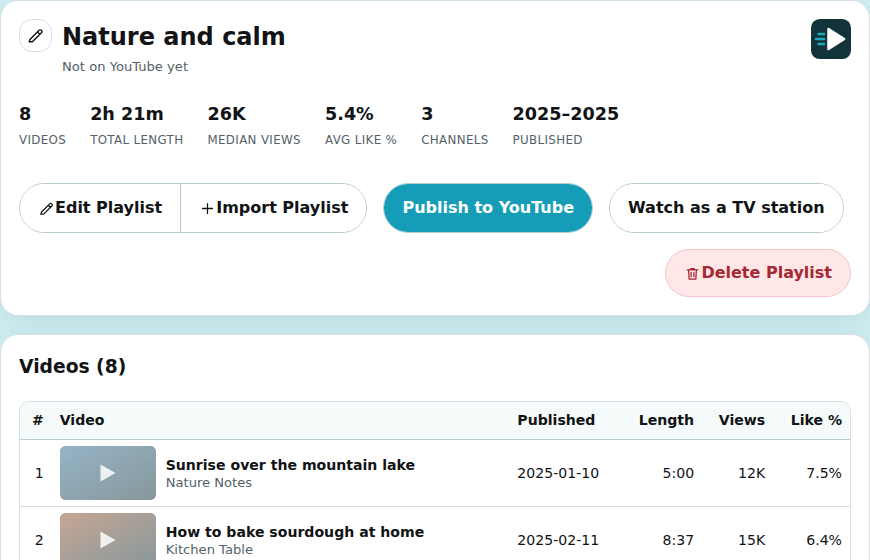
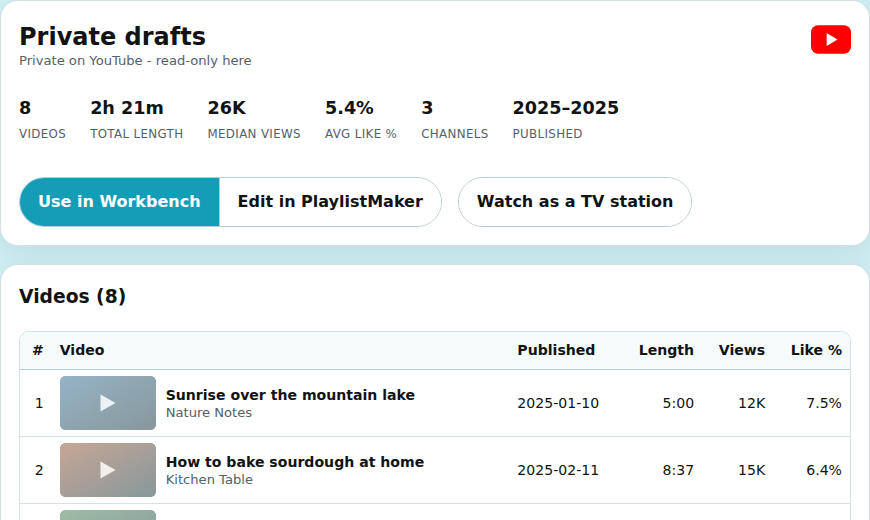
Open a list in the menu to see its videos and what you can do with it. Edit Playlist lets you change it; Import Playlist adds the videos of another list (or a YouTube playlist) at the start or the end; the pencil beside the title renames it; Delete Playlist removes it from PlaylistMaker (nothing on YouTube is touched).
While editing, tick videos and press Delete selected to remove them, use the arrows to move a video up or down, or drag a row by its number to reorder with a mouse. Select all ticks every video. Press Done editing when you finish; changes are saved as you go.
Playlists on YouTube
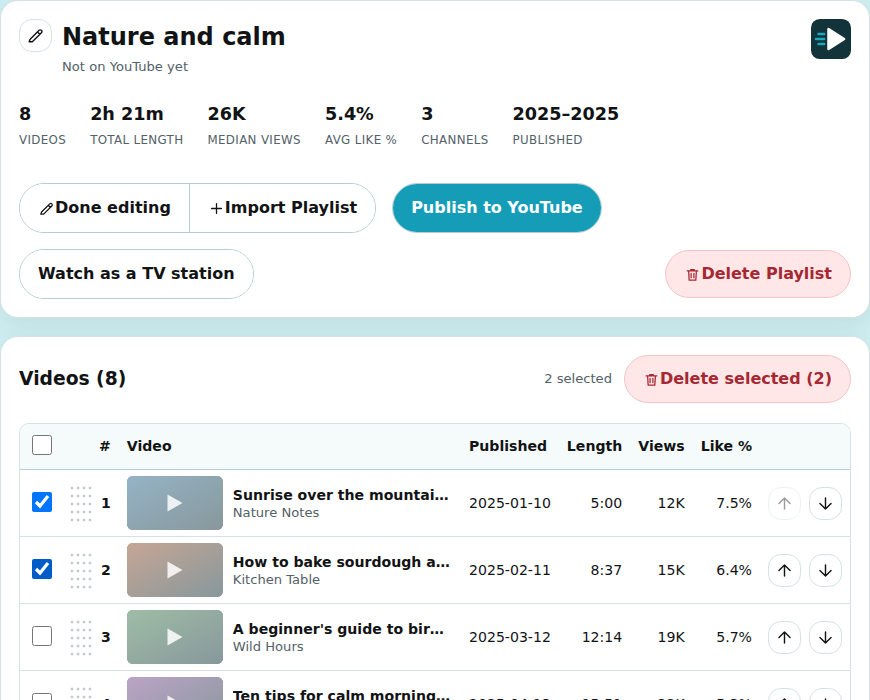
Playlists from your YouTube account are shown as they are on YouTube, with their privacy (public, unlisted or private) under the title. You cannot change them here directly. To work on one, press Edit in PlaylistMaker: it makes a copy you can change freely, and remembers where it came from so you can send the changes back later. Use in Workbench adds the playlist as a source.
Publish and update on YouTube
Publish to YouTube creates a new playlist in your YouTube account from a PlaylistMaker list. You choose its privacy, and PlaylistMaker first checks whether you already have a similar playlist. For a list that was copied from a YouTube playlist, Update on YouTube shows you what will change (videos added, removed, moved, or a new name) and only changes the original after you confirm; Publish as new makes a separate playlist instead. YouTube limits how many changes an app may make each day, so very large updates may need to wait until tomorrow.
Watch as a TV station
FamTiVi turns a playlist into a calm, ad-light TV channel. Watch as a TV station opens FamTiVi with your playlist.
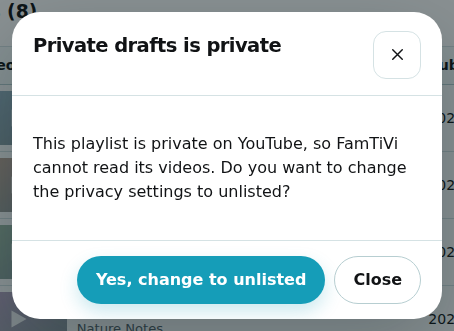
- A YouTube playlist must be public or unlisted, because FamTiVi reads it from YouTube. If it is private, PlaylistMaker offers to change it to unlisted for you.
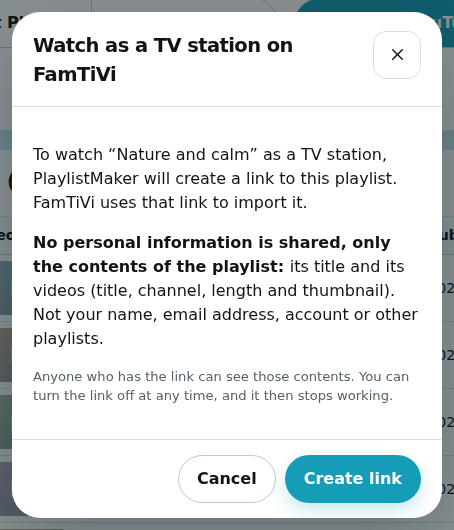
- A PlaylistMaker list is not on YouTube, so PlaylistMaker first asks your approval to create a link to it. Only the playlist's contents are shared (its title and the videos), nothing about you. Stop sharing turns the link off at any time.
Phones and tablets
On a phone, the menu sits at the top; the square Hide / Show button beside Workbench folds it away to give the page more room. On a tablet, the menu has a Hide menu button, the headings On YouTube and PlaylistMaker stay in the first column, and the playlist you choose opens to their right. Pages are laid out in cards on small screens, so every feature above is available on any device.
Send feedback
Something confusing, broken or missing? Tell us. Your name and email address are included so we can reply. Please do not put passwords in your message.